
Everything You Need to Manage Academic Scheduling

Organize Subjects, Courses & Sections
Build your academic structure from Subjects to Courses to Course Sections. Assign courses to programs and create the sections students and teachers will actually be scheduled into.

Configure When and Where Classes Happen
Define the days, periods, rooms, and teachers associated with each course section. Keep the essential scheduling information together so everyone knows when and where a class takes place.

Schedule Students Efficiently
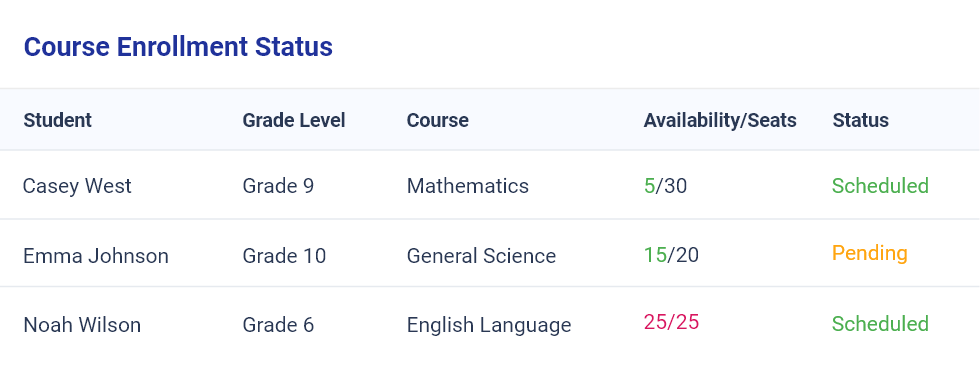
Enroll students into one or multiple courses at a time. Administrators can select a specific course section or place students into sections with available seats.

Assign Teachers with Confidence
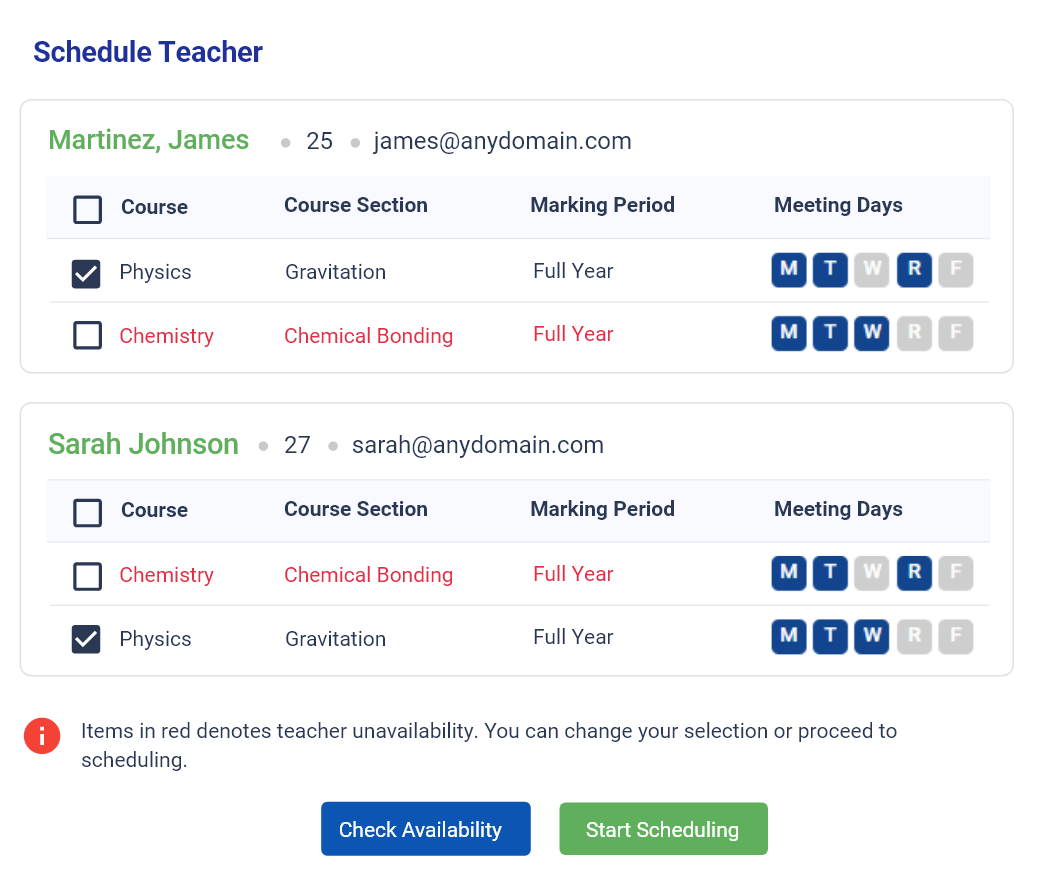
Assign teachers to one or multiple courses while checking their availability during scheduling. This helps administrators identify conflicts before assignments are finalized.

Check Course Prerequisites
Validate whether students meet course prerequisites before they are scheduled. When an exception is appropriate, authorized administrators can override the prerequisite check and continue enrollment.

Keep Capacity in View
Consider available seats when assigning students to course sections, helping administrators distribute enrollment across available sections.
Give Students More Control Over Course Selection
Students can submit course requests directly through their portal. When course sections are available, they can view the options and choose the section that best fits their schedule.
Administrators still retain control over the scheduling and enrollment process while students get a more convenient way to participate in course selection.
Catch Scheduling Conflicts Before They Become Problems
When assigning students or teachers, openSIS checks their availability against existing schedules.
Instead of discovering overlapping classes after schedules have been published, administrators get the information they need while making the scheduling decision.
One Schedule. Visible to Everyone Who Needs It.
Once scheduling is complete, the information doesn't stay buried inside the administrative system.
Administrators
Manage course sections, student enrollment, teacher assignments, capacity, prerequisites, and scheduling from a centralized system.
Teachers
See assigned classes and access individual schedules and timetables from the teacher portal.
Students
View enrolled courses, schedules, and timetables directly from the student portal.
From Course Setup to the Classroom
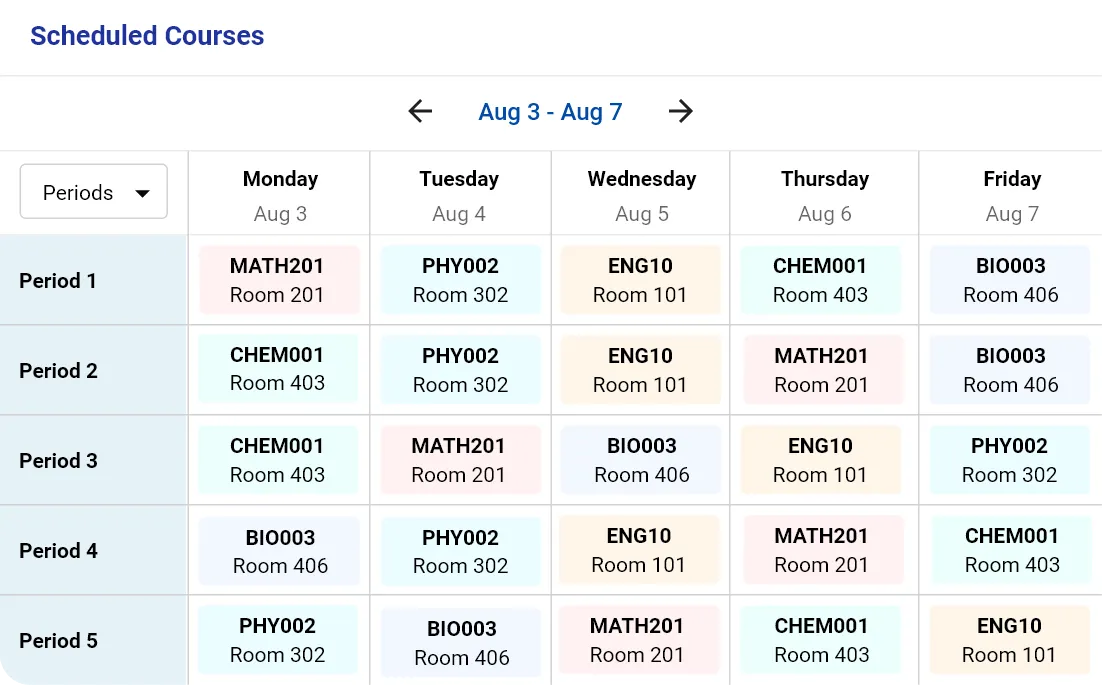
Follow the scheduling journey from subjects and course sections to student enrollment and published timetables.
Make Academic Scheduling Easier to Manage
Connect courses, people, rooms, periods, and enrollment in a scheduling workflow designed for the way educational institutions actually operate.